Best USB-C Monitors 2026: One Cable to Rule Your Desk
The best USB-C monitors for 2026: whether you want Thunderbolt 4 hub functionality, 4K sharpness, or a portable OLED you can toss in your bag. Real picks, no...
As an Amazon Associate we earn from qualifying purchases made through our links — this doesn't affect our picks.
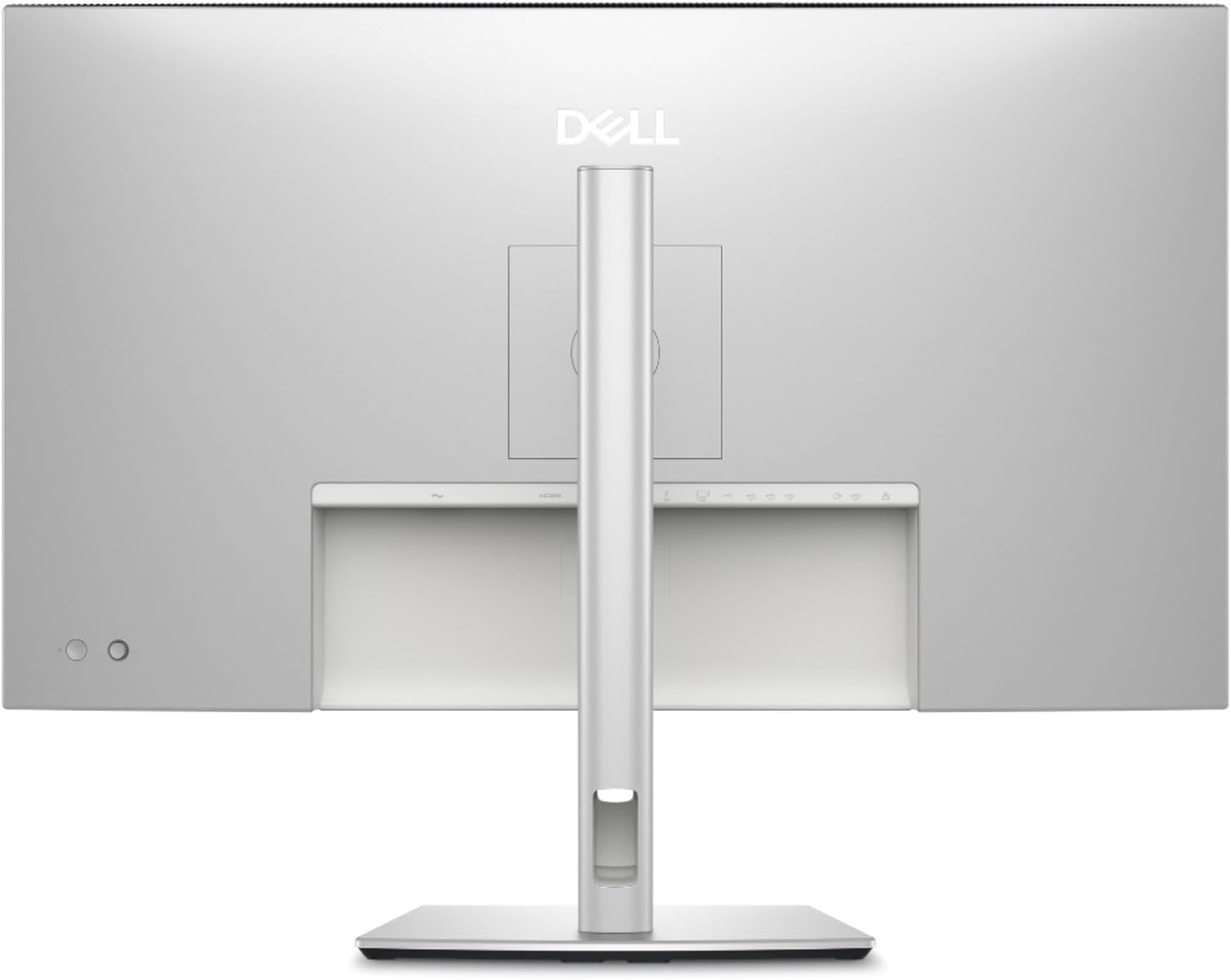
Dell UltraSharp U3225QE 31.5" 4K Thunderbolt Hub Monitor
Our top recommendation for this category
Price as of Feb 20, 2026 — see current price on Amazon.
In this guide
The single-cable desk setup is no longer a luxury. USB-C and Thunderbolt 4 monitors can carry video signal, charge your laptop, and route USB peripherals through one connection. Plug in and you're done.
But the category is a mess to shop. "USB-C" on a monitor can mean 10W of power delivery or 140W. It can mean DisplayPort Alt Mode or Thunderbolt 4. It can mean 1080p or 4K. Two monitors with identical USB-C labels can perform completely differently as single-cable workstations.
This guide covers six monitors for every use case, from $220 budget to $949 professional, ranked on which ones actually deliver on the single-cable promise.
Quick Picks
| Monitor | Size | Resolution | USB-C PD | Price | |
|---|---|---|---|---|---|
| Dell UltraSharp U3225QE | 31.5" | 4K 120Hz IPS Black | 140W TB4 | $779 | Check Price |
| Dell UltraSharp U2725QE | 27" | 4K 120Hz IPS Black | 140W TB4 | $849 | Check Price |
| LG 32UN880-B UltraFine Ergo | 31.5" | 4K 60Hz IPS | 96W | $579 | Check Price |
| LG 27UP850N-W UltraFine | 27" | 4K 60Hz IPS | 96W | $349 | Check Price |
| BenQ GW2786TC | 27" | 1080p 100Hz IPS | 65W | $220 | Check Price |
| ViewSonic VP16-OLED | 15.6" | 1080p OLED | 40W | $380 | Check Price |
Best Overall: Dell UltraSharp U3225QE
Dell UltraSharp U3225QE 31.5" 4K Thunderbolt Hub Monitor
Pros
- Thunderbolt 4 + 140W Power Delivery replaces your dock entirely
- IPS Black panel delivers real contrast for an IPS panel
- 2.5Gbps Ethernet built in (rare at any price)
- KVM switch for two-computer setups
- Six USB-A ports plus pop-out front panel USB hub
- 120Hz with VRR for smooth scrolling and light gaming
Cons
- No built-in speakers is a real miss at this price
- MSRP is $950, though it often sells for $779
- IPS Black contrast still trails VA or OLED
- 31.5 inches won't suit everyone's desk
Price as of Feb 20, 2026 — see current price on Amazon.
The Dell U3225QE is the monitor I recommend when someone says they want to plug in one cable and have everything work. One Thunderbolt 4 cable handles 4K 120Hz video, 140W laptop charging, and USB hub duty. You connect a second computer via DisplayPort and a KVM switch toggles between them with a button press. The built-in 2.5Gbps Ethernet handles network without a separate adapter.
The panel is Dell's IPS Black generation, which pushes contrast ratio to around 2000:1 compared to the 1000:1 typical of standard IPS. Text rendering is noticeably cleaner than older IPS monitors, especially in dark mode. It's not OLED contrast, but for a productivity panel that won't burn in, it's the best IPS available.
At 120Hz with AMD FreeSync Premium Pro, this monitor is faster than most productivity displays. It won't replace a dedicated gaming monitor, but scrolling through code, documents, or browser tabs feels smoother than the 60Hz displays most offices still run.
The missing speakers are a real omission. At $950 MSRP, speakers should be standard. If you run desktop speakers or headphones you'll never notice, but it's a compromise worth naming.
For professionals who want their monitor to replace a $200-300 USB-C dock, the U3225QE earns its price. Check out our best monitors for programming guide for a broader look at display options for developers.
Best 27-Inch Thunderbolt 4: Dell UltraSharp U2725QE
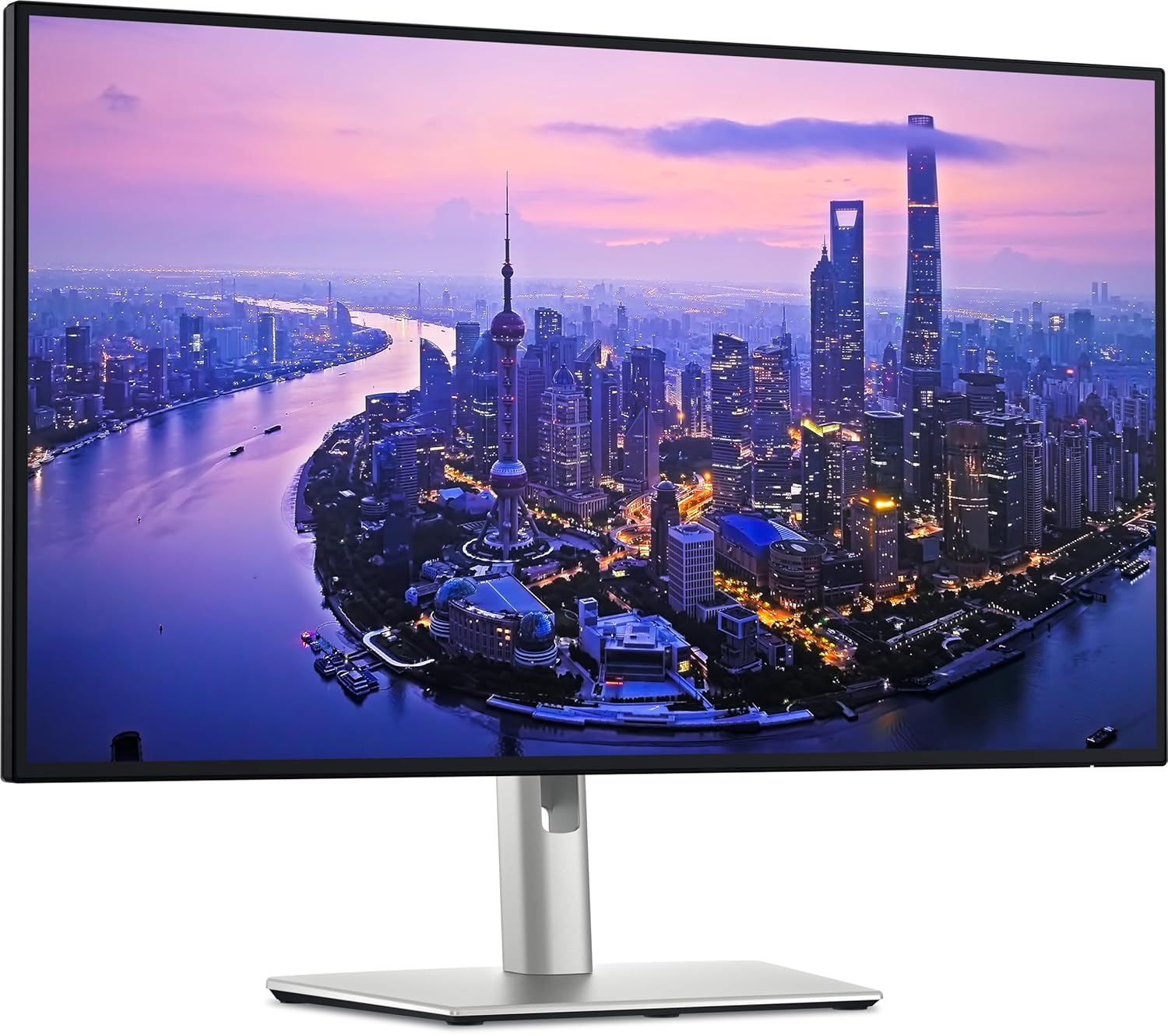
Dell UltraSharp U2725QE 27" 4K Thunderbolt Hub Monitor
Pros
- Same Thunderbolt 4 + 140W PD hub as the larger U3225QE
- IPS Black panel at 27 inches means pixels are dense and sharp
- Daisy-chain DisplayPort out for multi-monitor setups
- 100% sRGB, 99% DCI-P3 for accurate color work
- Full ergonomic adjustability including portrait mode
Cons
- More expensive than the 32-inch U3225QE, harder to justify
- No speakers
- 60Hz standard max (DisplayPort can reach 120Hz with DSC)
Price as of Feb 20, 2026 — see current price on Amazon.
The U2725QE is essentially the U3225QE shrunken to 27 inches, with the same Thunderbolt 4 hub and 140W power delivery. The smaller panel pushes pixel density to around 163 PPI versus 140 PPI on the 32-inch, which means text is sharper to the eye even if you can't always perceive the difference consciously.
At 27 inches, this is the sweet spot for people who want 4K sharpness without the physical size of a 32-inch panel. Sitting 18 to 24 inches from the display, 4K content is genuinely different from 1440p. Font rendering, fine detail in design work, and photo editing all benefit.
The Thunderbolt 4 out port enables daisy-chaining. Connect a second monitor without adding cables to your laptop. That's legitimately useful if you're running a dual-monitor laptop setup and only have one Thunderbolt port.
Oddly, the U2725QE costs slightly more than the larger U3225QE, which makes the value case harder to make. The reason to choose it: physical desk space or a preference for the denser pixel pitch. Both are valid.
Best Ergonomic Stand: LG 32UN880-B UltraFine Ergo
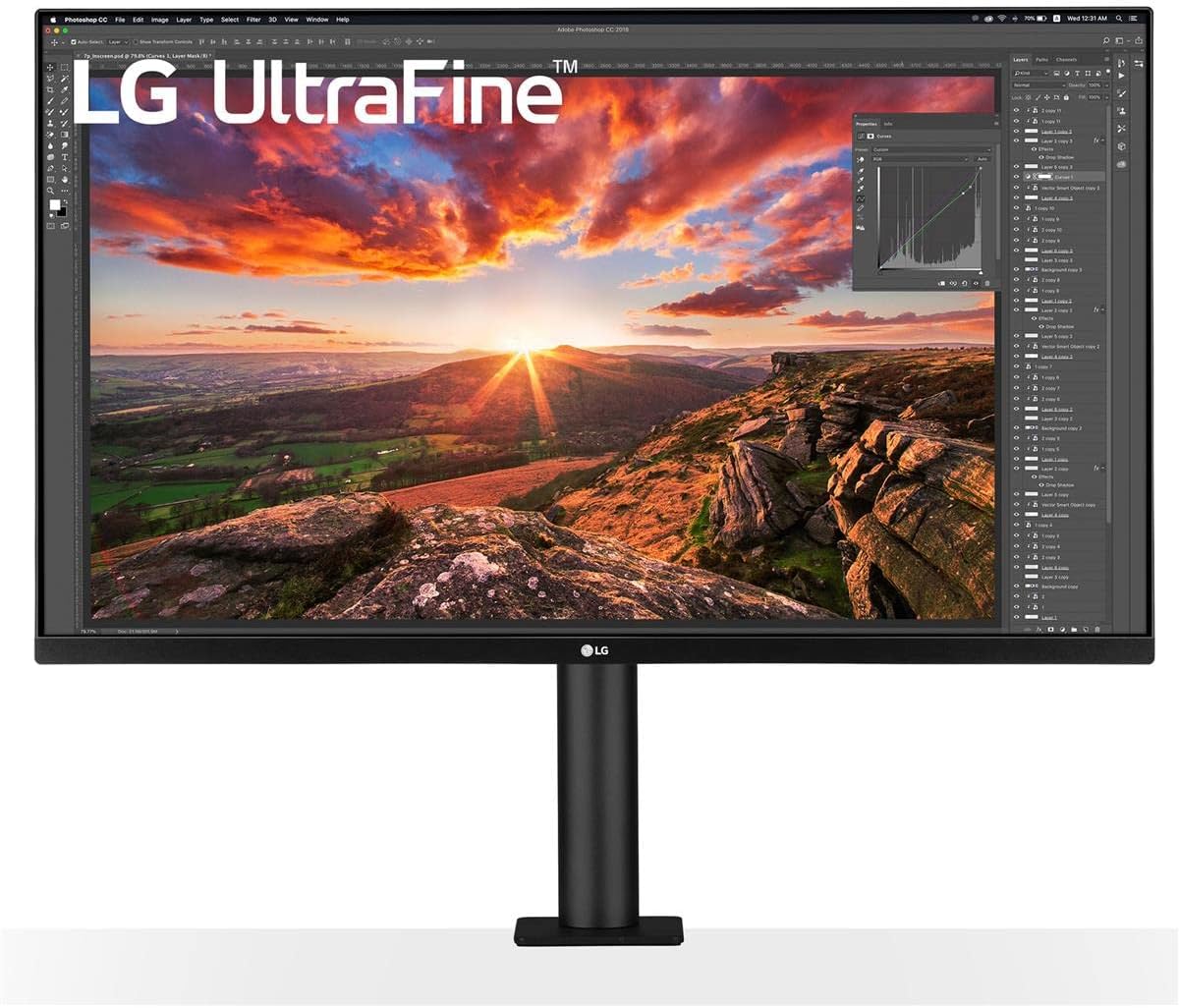
LG 32UN880-B UltraFine Display Ergo 32" 4K USB-C Monitor
Pros
- C-clamp or grommet stand means no monitor base on your desk
- Arm gives 180 degrees of articulation for any viewing angle
- 96W USB-C Power Delivery handles most laptops
- DCI-P3 95% color coverage is solid for creative work
- 32-inch 4K looks great at arm's length
Cons
- 60Hz only, which feels dated compared to 120Hz alternatives
- No Thunderbolt 4 hub functionality
- Fewer USB ports than the Dell options
- C-clamp requires a compatible desk edge
Price as of Feb 20, 2026 — see current price on Amazon.
Most monitors eat desk real estate with a chunky base. The LG 32UN880-B is different. It ships with a C-clamp arm that mounts to your desk edge (or via grommet), which means the entire desk surface in front of your monitor stays clear. You can position it anywhere the arm reaches, including above eye level if you use a standing desk.
The 180-degree articulation is not marketing speak. The arm swings the panel from portrait mode for code review to landscape for design work and back without loosening a bolt.
For ergonomics, this is the most honest monitor stand short of buying a separate VESA arm. If you run long sessions and care about eye level alignment, the built-in arm beats every competitor in this price range.
USB-C power delivery tops out at 96W, which covers MacBook Pro 14, Dell XPS 15, and similar laptops. The 32-inch 4K IPS panel covers DCI-P3 95%, which is good enough for photo editing and light video work. The limitation: 60Hz. For productivity-only use, 60Hz is fine. If you want 120Hz, look at the Dell options above.
Best Mid-Range 4K: LG 27UP850N-W UltraFine
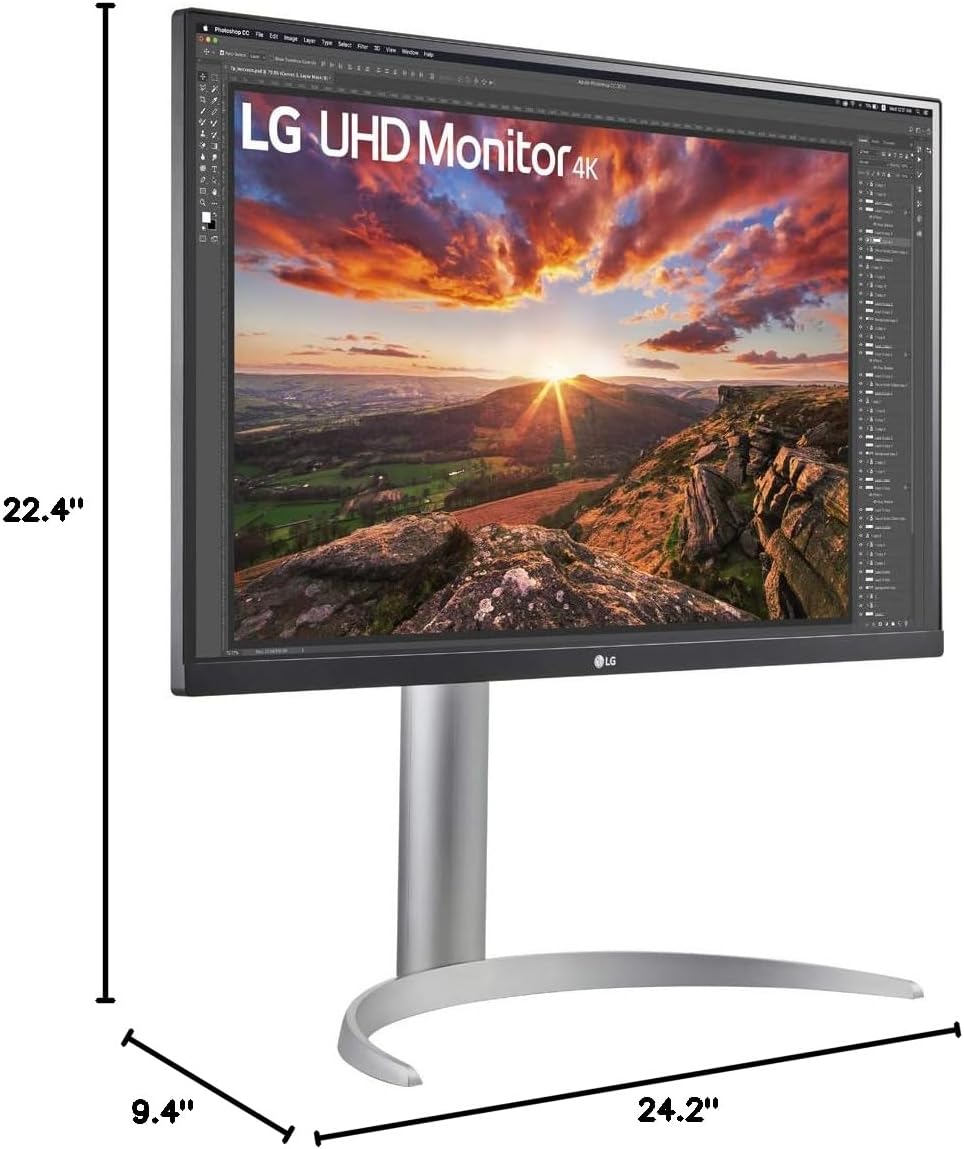
LG 27UP850N-W UltraFine 27" 4K USB-C Monitor
Pros
- 96W USB-C charges most laptops without a separate adapter
- 4K IPS at 27 inches is sharp and accurate
- DisplayHDR 400 certification for decent HDR content
- DCI-P3 95% color for creative work
- Reasonable desk footprint with full ergonomic stand
Cons
- 60Hz only
- USB-C upstream doesn't include Thunderbolt
- Fewer hub ports than the Dell options
- Not as bright as Dell's IPS Black panels
Price as of Feb 20, 2026 — see current price on Amazon.
The LG 27UP850N-W hits the USB-C sweet spot for people who want 4K single-cable convenience without Thunderbolt 4 pricing. At $349, you get 96W Power Delivery, which is enough for a MacBook Pro 14 or a Dell XPS 13 to charge at full speed. Add a 4K IPS panel with 95% DCI-P3 coverage and this is a legitimate work monitor.
The display quality punches above its price. Color accuracy out of box measures consistently under DeltaE 2, which means the colors you see are the colors in the file. For photographers or anyone who cares about accurate display, that matters more than many of the specs manufacturers lead with.
The 27-inch 4K panel resolves fine text with the crispness that makes going back to 1080p or 1440p uncomfortable. At 163 PPI, individual pixels are invisible at normal viewing distances.
Where it falls short: everything beyond the basics. The USB hub has downstream USB-A ports but no Thunderbolt passthrough. It's a good monitor with single-cable convenience, not a full dock replacement like the Dell options. If you just want to plug in, charge, and see your work clearly, the 27UP850N-W does that well for far less money. For a broader comparison of the monitor market, our best gaming monitors guide covers displays from a performance angle.
Best Budget: BenQ GW2786TC
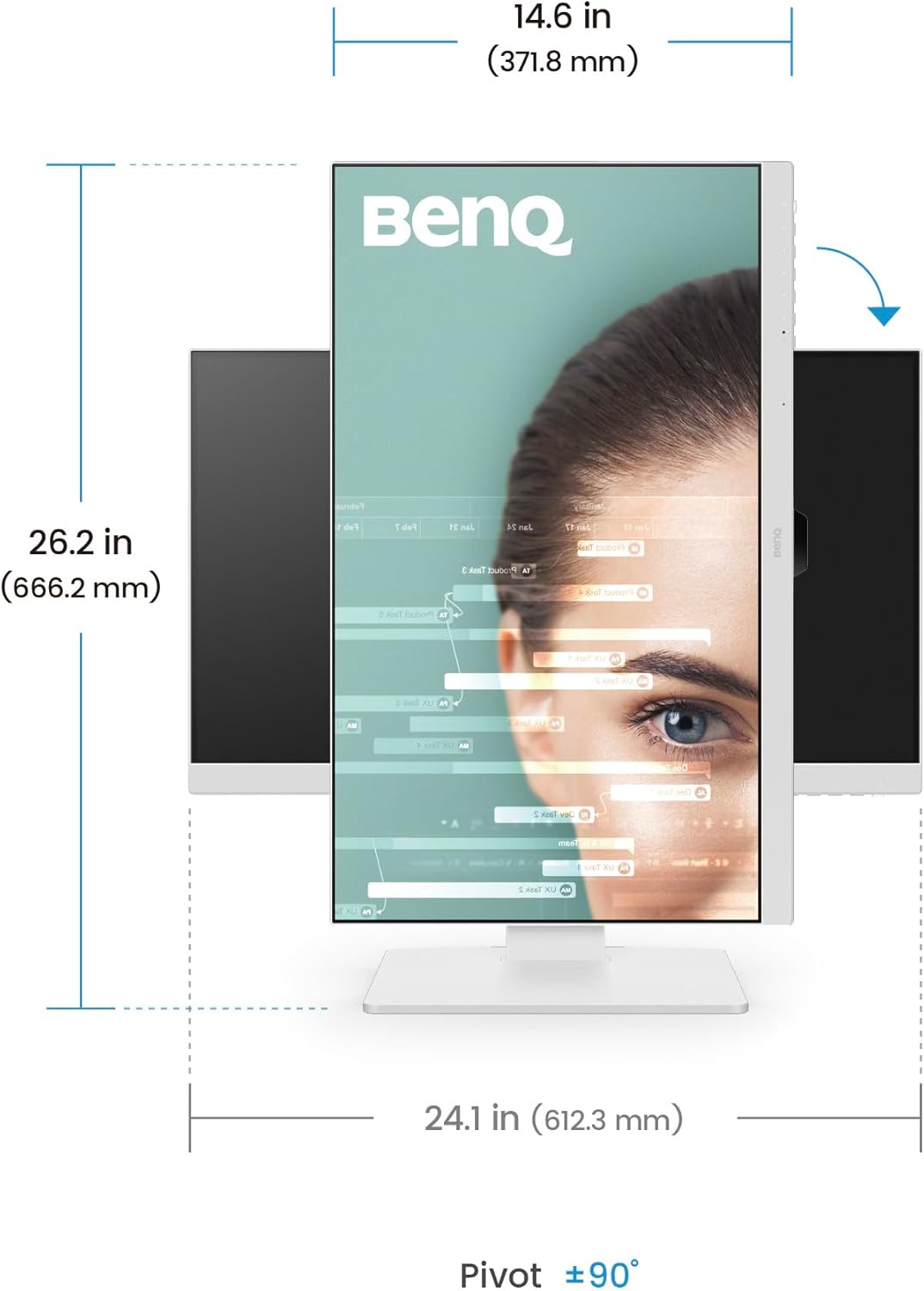
BenQ GW2786TC 27" 1080p USB-C Home Office Monitor
Pros
- $220 with USB-C 65W Power Delivery is genuinely cheap
- Built-in noise-canceling microphone is useful for calls
- DisplayPort-out for daisy-chaining a second monitor
- IPS panel with accurate color for the price
- 100Hz for smoother-than-60Hz everyday use
Cons
- 1080p on a 27-inch panel shows individual pixels, so text is softer
- No adaptive sync limits gaming smoothness
- 65W may not fully charge high-performance laptops at load
- Color gamut trails the LG and Dell options
Price as of Feb 20, 2026 — see current price on Amazon.
Nobody expects much from a $220 monitor with USB-C. The BenQ GW2786TC surprises you. Its 65W Power Delivery charges most thin laptops (MacBook Air, Dell XPS 13, Surface Laptop) through one cable. The built-in noise-canceling microphone is actually good enough for Zoom calls without a separate mic. DisplayPort daisy-chain output lets you loop to a second monitor, which is rare at this price.
The 1080p resolution is the limitation you'll feel. On a 27-inch panel, pixel density sits at 81 PPI, and individual pixels are visible if you look for them. Text rendering is noticeably softer than 4K displays at the same size. For most web, email, and office work you don't notice once you're focused on content. For long sessions with small text like code or spreadsheets, it becomes tiring.
The 100Hz IPS panel makes everyday scrolling feel noticeably smoother than 60Hz. It's not a gaming monitor. No adaptive sync means frame tearing is possible, but for productivity, the higher refresh rate is a quality-of-life upgrade over the baseline.
For someone setting up their first USB-C desk, plugging a MacBook Air into one cable and getting video plus charging handled simultaneously is useful regardless of resolution. It pairs well with a good keyboard, mouse, and maybe a USB-C hub or dock for extra ports.
Best Portable: ViewSonic VP16-OLED

ViewSonic VP16-OLED 15.6" Portable OLED Monitor
Pros
- OLED panel in a portable monitor is genuinely unusual
- Infinite contrast makes colors pop in ways IPS can't
- Pantone Validated color accuracy out of box
- Clever stand converts to kickstand or upright
- Two USB-C ports handle both video input and power
Cons
- 15.6-inch 1080p panel means lower pixel density than desktop monitors
- No HDR support despite OLED panel
- Built-in speakers are tinny and quiet
- $380 is expensive for a portable monitor
Price as of Feb 20, 2026 — see current price on Amazon.
Portable monitors are usually a compromise. The VP16-OLED is not. The 15.6-inch OLED panel delivers contrast ratios that make every other portable monitor look flat by comparison. Blacks are actual black. Colors are saturated without over-saturation. Viewing angles are perfect, which matters when you're using a portable in a coffee shop at weird angles.
ViewSonic tuned this for accuracy. Pantone Validated color means the hues you see match real-world color standards. For photographers reviewing shots on the road or designers showing clients work, that's a meaningful credential. Most portable monitors don't bother.
The stand design is clever. It folds flat as a protective cover, expands as a kickstand for tabletop use, or props the monitor nearly upright on a desk. It's stable enough for a tray table or a cramped desk.
Both USB-C ports support power and video simultaneously. Connect your laptop to one port, connect a USB-C charger to the second, and your laptop charges while the monitor runs. That's a problem cheaper portable monitors fumble.
The downsides are real: no HDR, weak speakers, and $380 is steep for secondary screen territory. But no other portable monitor at this price combines OLED image quality with Pantone calibration. For anyone who travels frequently and cares how their work looks, it's the one to get. Browse our best portable monitors guide for the full portable category breakdown.
USB-C Monitor Buying Guide
What Does "USB-C" Actually Mean on a Monitor?
The USB-C port on a monitor can do several things, and manufacturers aren't always clear about which:
Video input only: The USB-C port accepts a video signal but does nothing else. No charging, no hub. Skip these.
Video + Power Delivery: The monitor charges your laptop while displaying video. This is the minimum you want for single-cable convenience. Look for at least 65W for thin laptops, 90W+ for performance laptops.
Video + PD + USB Hub: The monitor handles video, charges your laptop, and provides USB-A/USB-C ports for peripherals. This is the full single-cable setup.
Thunderbolt 4: A superset of USB-C with standardized 40Gbps bandwidth, guaranteed compatibility, daisy-chaining support, and 140W power delivery. The best option, but costs more.
How Much Power Delivery Do You Need?
- 65W: MacBook Air, thin Windows laptops, most Chromebooks
- 90W: MacBook Pro 14, Dell XPS 15, Lenovo ThinkPad X1 Carbon
- 96W+: MacBook Pro 16, high-performance gaming laptops (though gaming laptops often need dedicated chargers)
A monitor with 65W PD will still charge a MacBook Pro 16, just slower than its dedicated charger. In practice, slow charging beats no charging.
Resolution vs. Size vs. Sharpness
Pixel density (PPI) is what actually determines sharpness:
| Panel Size | 1080p PPI | 1440p PPI | 4K PPI | |:-----------|:----------|:----------|:-------| | 24 inch | 92 | 122 | 183 | | 27 inch | 81 | 108 | 163 | | 32 inch | 68 | 92 | 138 |
At 27 inches, 4K is a noticeable upgrade over 1080p in text clarity. At 32 inches, 4K is still sharper than 1440p, but the gap narrows compared to smaller panels.
IPS vs. VA vs. OLED for Productivity
IPS: Best color accuracy, widest viewing angles, consistent text rendering. The standard for professional monitors. IPS Black panels add better contrast.
VA: Higher contrast ratio than standard IPS, deeper blacks, better HDR performance. Can show motion blur and slow pixel response in fast content. Some people find VA panels harder on the eyes for long sessions.
OLED: Infinite contrast, perfect blacks, instant pixel response. Increasingly available in monitors. Watch for burn-in with static productivity elements (taskbars, window chrome). Usually more expensive.
For USB-C desk monitors, IPS dominates because reliability and color accuracy matter more than contrast at a desk. OLED makes more sense for portable monitors where size and image quality justify the premium.
Frequently asked questions
- Can any USB-C cable work with these monitors?
- No. USB-C cables are not equal. For Thunderbolt 4 monitors, you need a Thunderbolt 4 cable or a USB4 40Gbps cable. Regular USB-C cables often cap out at 10Gbps, which limits resolution and refresh rate. For 4K 120Hz, you need a cable that explicitly supports the bandwidth. Most Thunderbolt monitors include the right cable in the box.
- Do these monitors work with iPads?
- Most modern iPads support DisplayPort Alt Mode over USB-C, including iPad Pro (all USB-C models) and iPad Air. Connect via USB-C and the iPad mirrors or extends its display. Not all apps support external display at full resolution, so check your specific apps. The USB-C hub functionality works for connecting accessories.
- What's the difference between USB-C and Thunderbolt 4?
- Thunderbolt 4 is a certification built on the USB-C physical connector. All Thunderbolt 4 ports require 40Gbps bandwidth, power delivery, and daisy-chaining support. Regular USB-C can be anything from 5Gbps to 40Gbps depending on the specific implementation. If you see "Thunderbolt 4" on a monitor, it's a guarantee of full functionality. "USB-C" alone is not.
- Will a USB-C monitor charge my MacBook Pro 16?
- Yes, but potentially slower than full speed. The MacBook Pro 16 uses up to 140W when under load. Most monitors deliver 65-96W. The laptop will charge during light use and hold its battery level during heavy use, but may drain slightly while running demanding apps. If that's a concern, choose a Thunderbolt 4 monitor with 140W PD like the Dell U3225QE or U2725QE.
- Should I get a USB-C monitor or a USB-C dock?
- Depends on the setup. A USB-C dock plus a standard monitor gives you more flexibility. You can upgrade each separately. A USB-C monitor simplifies cabling and reduces desk clutter. If you work at a fixed desk and value clean cable routing, the monitor-as-hub approach wins. For portable setups or multiple computers sharing one dock, a separate USB-C hub or dock gives more flexibility.
- Can I connect two USB-C monitors to one laptop?
- Usually, but it depends on your laptop's Thunderbolt configuration. Most modern MacBook Pros support two external displays via Thunderbolt. Most Windows ultrabooks support at least one 4K display, some support two. Check your laptop's spec sheet for "max external displays supported." Thunderbolt 4 daisy-chaining (supported on the Dell U2725QE) lets you connect two monitors with one laptop port.
The Verdict
For most people at a fixed desk, the Dell UltraSharp U3225QE is the cleanest single-cable solution available. One Thunderbolt 4 cable handles everything your dock used to handle. The IPS Black panel looks better than standard IPS, and 120Hz feels right for daily use.
If your desk is too small for 32 inches, the Dell U2725QE is the same monitor in a smaller package. Slightly more expensive, but the higher pixel density and identical hub functionality make it the right 27-inch choice for USB-C setups.
Budget-conscious buyers who just need single-cable convenience and can live with 1080p will find the BenQ GW2786TC delivers that promise at $220 without drama. The built-in microphone is a bonus.
Travelers who refuse to compromise on display quality should look at the ViewSonic VP16-OLED. It's the only portable monitor that makes you forget you're looking at a portable monitor.
For pairing with your new monitor, see our best laptops for programming guide for laptop picks that make the most of Thunderbolt 4 connectivity.
How We Pick
We pick products by combining spec-level research, price checks, trusted third-party benchmarks, and owner sentiment from high-signal sources.
- Performance and real-world value in the category this guide targets
- Price-to-performance and deal consistency over recent pricing windows
- Build quality, reliability patterns, and known long-term issues
- Recommendation refresh cadence to keep these picks current
Author
TheTechSearch Editorial Team
Independent product reviewers & PC builders
We compare real-world specs, reviews and owner reports, price trends, and user feedback to recommend gear that actually makes sense to buy.