Best USB-C Hubs and Docks 2026
The best USB-C hubs and docking stations for laptops in 2026. From compact travel hubs to full Thunderbolt 5 docks for your home office. Expert picks, pros a...
As an Amazon Associate we earn from qualifying purchases made through our links — this doesn't affect our picks.
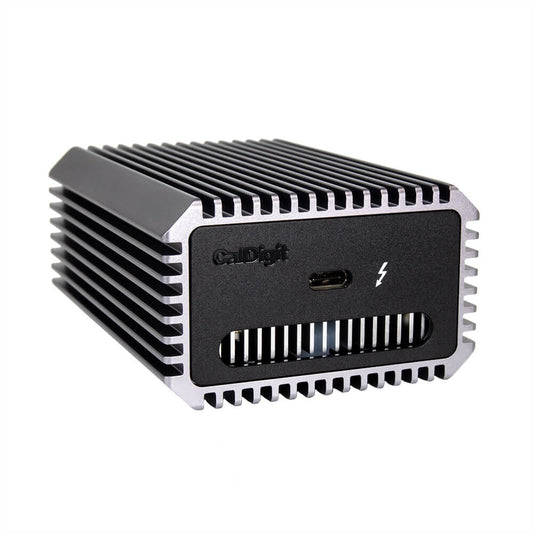
CalDigit TS4 Thunderbolt 4 Dock
Our top recommendation for this category
Price as of Jan 26, 2026 — see current price on Amazon.
Modern laptops give you two or three USB-C ports and call it a day. If you need to connect a monitor, external drive, mouse, keyboard, and ethernet (which covers most desk setups) to your laptop, you need a hub or dock. The difference between a good one and a bad one is whether you end up with random disconnects, flickering displays, and slow file transfers.
Here are the hubs and docks worth buying, and the tradeoffs each one makes.
Quick comparison
| Hub/Dock | Ports | Max Display | Power Delivery | Price | |
|---|---|---|---|---|---|
| CalDigit TS4 | 18 ports | Dual 6K or single 8K | 98W | $400 | Check Price |
| Anker 577 Thunderbolt 4 | 13 ports | Dual 4K@60Hz | 90W | $250 | Check Price |
| Satechi USB4 Multiport | 6 ports | Single 8K or dual 4K | 100W | $100 | Check Price |
| Anker 341 USB-C Hub | 7 ports | Single 4K@30Hz | None | $25 | Check Price |
| OWC Thunderbolt 5 Dock | 16 ports | Triple 4K@144Hz | 140W | $350 | Check Price |
CalDigit TS4
CalDigit TS4 Thunderbolt 4 Dock
Pros
- 18 ports covers literally everything
- 98W laptop charging
- Dual 6K display support
- Rock-solid stability, no random disconnects
- Front-facing SD and microSD slots
Cons
- $400 is a serious investment
- Large footprint on a desk
- Requires Thunderbolt 4 host for full features
- Fan can be faintly audible under load
Price as of Jan 26, 2026 — see current price on Amazon.
The CalDigit TS4 has a strong reputation for stability: owners rarely report crashes or dropped connections. That might sound like a low bar, but if you've used cheaper docks, you know it isn't. Eighteen ports means you rarely have to unplug one thing to plug in another. Three Thunderbolt 4 downstream ports, five USB-A, USB-C, ethernet, audio, SD, microSD. It's all there.
98W charging keeps a MacBook Pro topped up while running dual external displays. Setup is one cable: plug Thunderbolt into your laptop, everything connects. Pull one cable when you're done and take your laptop to the couch. That's the whole appeal of a dock like this.
The price is hard to justify if you only need a couple extra ports. But if your desk has monitors, drives, peripherals, and you're tired of dongles, the TS4 pays for itself in convenience.
Anker 577 Thunderbolt 4 Docking Station
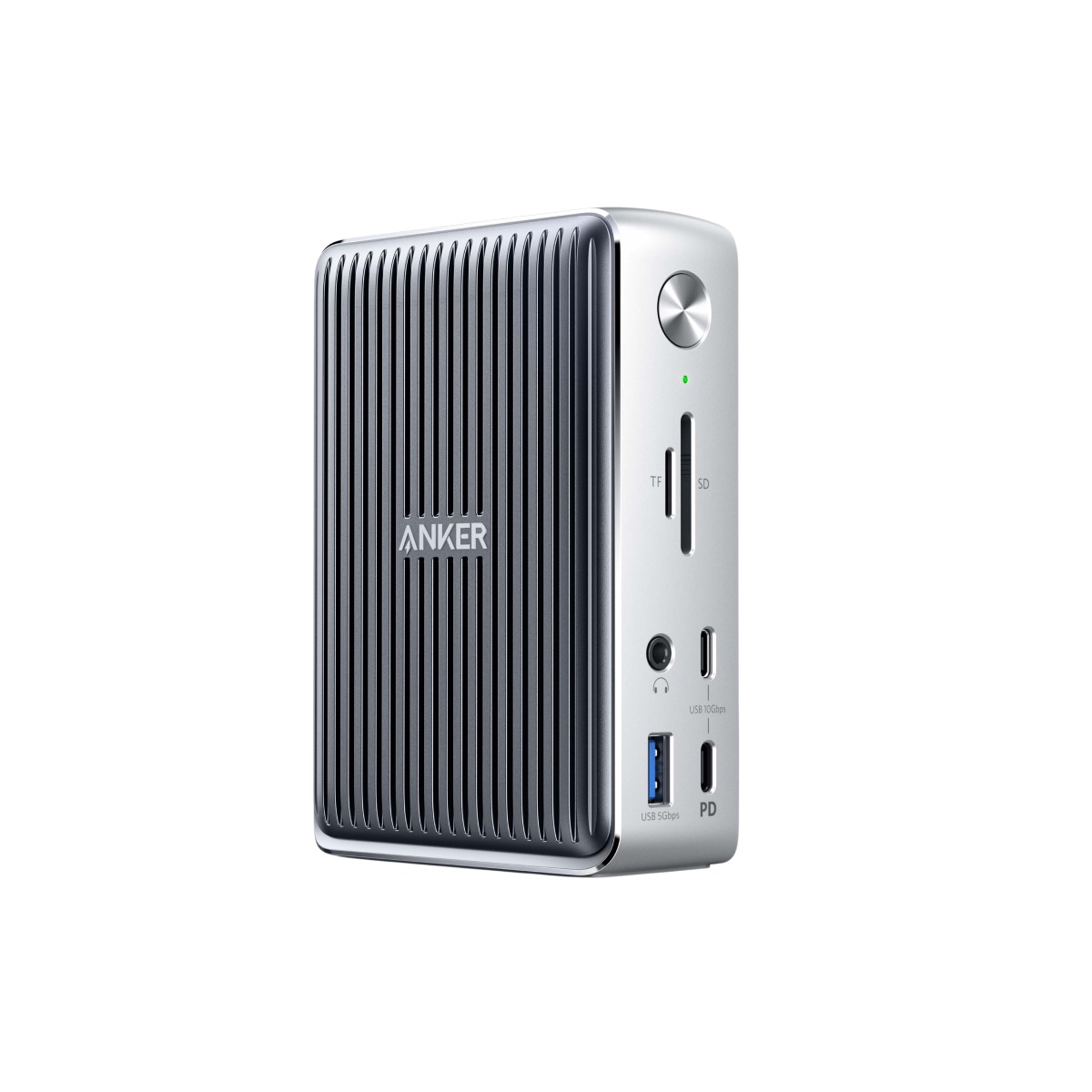
Anker 577 Thunderbolt 4 Docking Station
Pros
- $150 cheaper than CalDigit for similar functionality
- 13 ports is plenty for most setups
- 90W charging
- Compact vertical design
- Dual 4K@60Hz display output
Cons
- Occasional USB device disconnects on wake from sleep
- Build quality feels lighter than CalDigit
- No SD card reader
- 90W may not fast-charge larger laptops
Price as of Jan 26, 2026 — see current price on Amazon.
The Anker 577 does 85% of what the CalDigit does for 60% of the price. Dual 4K monitors at 60Hz, 90W charging, three downstream USB-A ports, ethernet, and audio. For most people with a standard home office setup, this is enough.
The known weak spot is occasional USB disconnects when a laptop wakes from sleep. Unplugging and replugging the Thunderbolt cable fixes it, but it's annoying, and CalDigit owners rarely report the same problem. Whether that's worth the $150 premium is up to you.
Satechi USB4 Multiport Adapter
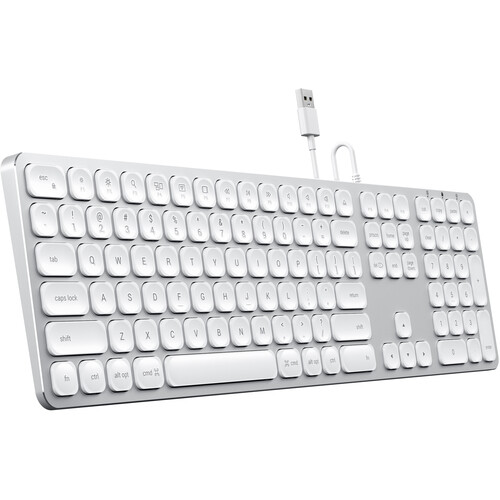
Satechi USB4 Multiport Adapter
Pros
- USB4 support for up to 8K or dual 4K
- 100W passthrough charging
- Compact enough for travel
- Aluminum build matches MacBook aesthetic
- Six useful ports
Cons
- Gets warm during heavy use
- Only one USB-A port
- No ethernet
- USB4 requires compatible host
Price as of Jan 26, 2026 — see current price on Amazon.
Satechi's USB4 hub is the sweet spot between a travel dongle and a desk dock. Six ports (USB4 video, USB-C data, USB-A, SD, microSD, and 100W passthrough charging) in a palm-sized aluminum body. It handles a single 8K display or dual 4K without issue, which is impressive for something this small.
This one suits working from coffee shops with a portable monitor. It's small enough to fit in a laptop sleeve pocket and covers the essentials on the go. Not a desk replacement, but a great travel companion.
Anker 341 USB-C Hub
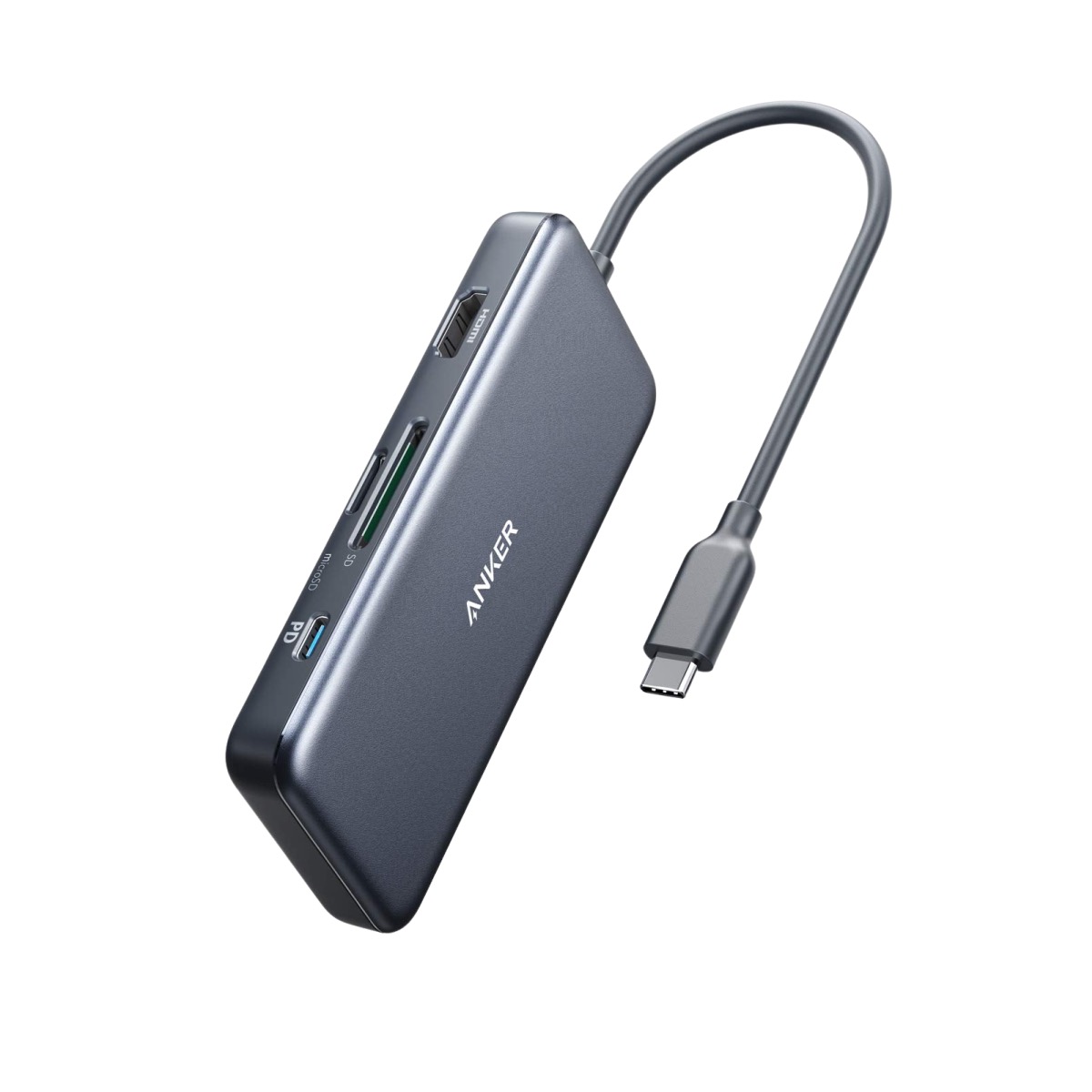
Anker 341 USB-C Hub (7-in-1)
Pros
- $25. Cheapest functional hub you'll find
- HDMI, two USB-A, USB-C, SD, microSD
- Tiny and lightweight
- Works with any USB-C laptop
- No drivers needed
Cons
- 4K output limited to 30Hz
- No power delivery passthrough
- Gets hot during extended use
- HDMI can be finicky with some monitors
Price as of Jan 26, 2026 — see current price on Amazon.
Twenty-five dollars. That's it. You get HDMI out (4K@30Hz), two USB-A 3.0 ports, USB-C data, SD, and microSD. No charging passthrough, no Thunderbolt speeds, no dual monitor support. But for plugging in a flash drive, connecting to a projector, or downloading photos from an SD card, it works.
It makes a sensible backup to keep in a bag. Just know that 4K@30Hz on the HDMI output is noticeably laggy for anything beyond static content.
OWC Thunderbolt 5 Dock
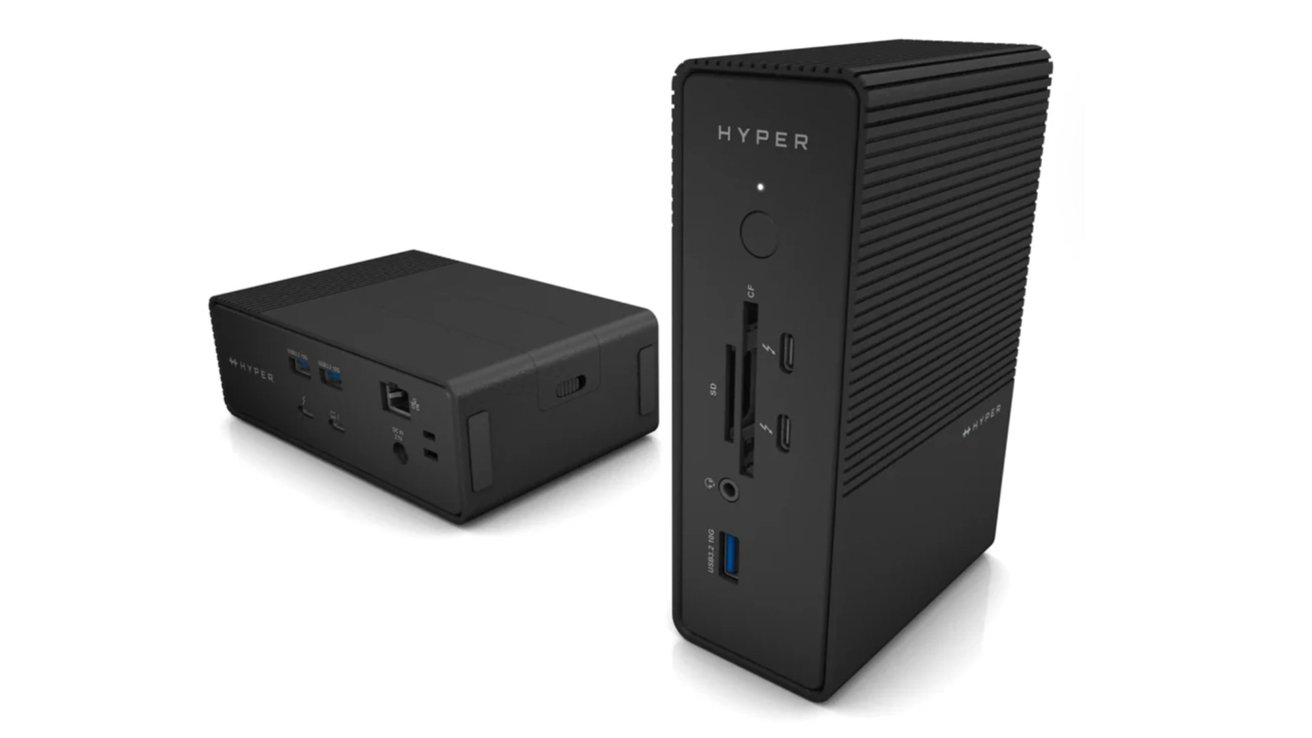
OWC Thunderbolt 5 Dock
Pros
- Thunderbolt 5: 80Gbps bandwidth
- Triple 4K@144Hz or single 8K@60Hz display
- 140W laptop charging
- 16 ports including 10GbE ethernet
- Future-proof connectivity
Cons
- Requires Thunderbolt 5 host (few laptops support it yet)
- $350 for features most people can't use yet
- Large and heavy
- Software setup can be confusing
Price as of Jan 26, 2026 — see current price on Amazon.
The OWC Thunderbolt 5 Dock is the future. 80Gbps bandwidth means triple 4K displays at 144Hz, 140W charging, and 10 Gigabit ethernet, all through one cable. If you have a Thunderbolt 5-equipped laptop (currently limited to a few 2026 models), this is the dock to get.
For everyone else, it's a premature purchase. The bandwidth advantages only materialize with a TB5 host. Connected to a TB4 laptop, it works fine but performs identically to cheaper TB4 docks. Worth watching, not worth buying yet for most people.
Hub vs dock: which do you need?
Get a hub ($25-100) if: You need a few extra ports for occasional use, you travel, or your setup is simple (one monitor, a few peripherals).
Get a dock ($250-400) if: You have a permanent desk setup with multiple monitors, want one-cable connectivity, and need laptop charging through the dock.
My pick
The CalDigit TS4 at $400 if you want the best and won't look back. Anker 577 at $250 is the value pick. The Anker 341 at $25 if you just need basic port expansion.
As an Amazon Associate, we earn from qualifying purchases. This doesn't affect our recommendations or editorial independence.
Related guides
- Best USB-C Monitors 2026
- Best Wireless Chargers 2026
- Best 4K Monitors in 2026
- Best 4K TVs Under $1000 in 2026
Frequently asked questions
- What is the difference between a USB-C hub and a docking station?
- USB-C hubs are compact, portable devices that expand a few ports, typically USB-A, HDMI, and SD card, powered by the connected laptop. Docking stations are desktop-oriented, often connect via Thunderbolt, support multiple 4K monitors, and include Ethernet, audio, and 100W charging. Hubs suit travelers and those who need basic expansion. Docking stations suit desk workers who want a single-cable connection to a full desktop-like setup.
- Does a USB-C hub reduce laptop performance?
- Generally no, but bandwidth is shared across ports. On a USB 3.2 Gen 2 hub, transferring files and outputting video simultaneously splits the available 10 Gbps bandwidth. On Thunderbolt 4 docks, 40 Gbps headroom makes this less of an issue. For charging, some USB-C hubs pass through the full wattage from the charger, while others reduce it by 10 to 15W for hub operation. Check passthrough charging specs if you need full laptop charging speed.
- What should I look for in a USB-C hub for a MacBook?
- MacBook users want HDMI 2.1 for 4K 60Hz or higher output, USB-C Power Delivery passthrough of 87W to 96W for full charging speed, SD card reader (UHS-II for photographers), USB-A ports for peripherals, and Ethernet if you work wired. Thunderbolt 4 docks give the most bandwidth and support dual external displays on MacBook Pros. USB-C hubs without Thunderbolt typically support only one external display on M-series MacBooks due to Apple driver limitations.
- Why can some MacBooks only use one external display with a hub?
- Apple Silicon M1 and M2 MacBook Air and base MacBook Pro models have a hardware limitation that restricts external display output to one screen when using standard USB-C hubs. This is a chip-level limitation, not a software bug. The M3 MacBook Air and M3 Pro and above support dual displays. Thunderbolt docks can work around this via DisplayLink technology with an extra app install, but this uses CPU resources. Check your specific MacBook model against display hub compatibility before buying.
- How many watts do I need for USB-C hub charging passthrough?
- MacBook Air 13-inch needs 45 to 65W for comfortable charging. MacBook Air 15-inch and MacBook Pro 14-inch need 65 to 96W. MacBook Pro 16-inch needs 96 to 140W under load. Most USB-C hubs reduce passthrough by 5 to 15W for their own operation, so a hub rated at 100W typically delivers 85 to 90W to the laptop. Docking stations with 100W PD output are safer for Pro users who need maximum charging speed under load.
How We Pick
We pick products by combining spec-level research, price checks, trusted third-party benchmarks, and owner sentiment from high-signal sources.
- Performance and real-world value in the category this guide targets
- Price-to-performance and deal consistency over recent pricing windows
- Build quality, reliability patterns, and known long-term issues
- Recommendation refresh cadence to keep these picks current
Author
TheTechSearch Editorial Team
Independent product reviewers & PC builders
We compare real-world specs, reviews and owner reports, price trends, and user feedback to recommend gear that actually makes sense to buy.